
01
Re-asking every caller
Agents ask regulars for their address and order every time because they cannot see history. Calls take longer and the line backs up.

Your agents look up the caller by phone number, take the order with the right branch prices, and send it straight to the kitchen that will cook it. Managers see every order live until it is delivered.
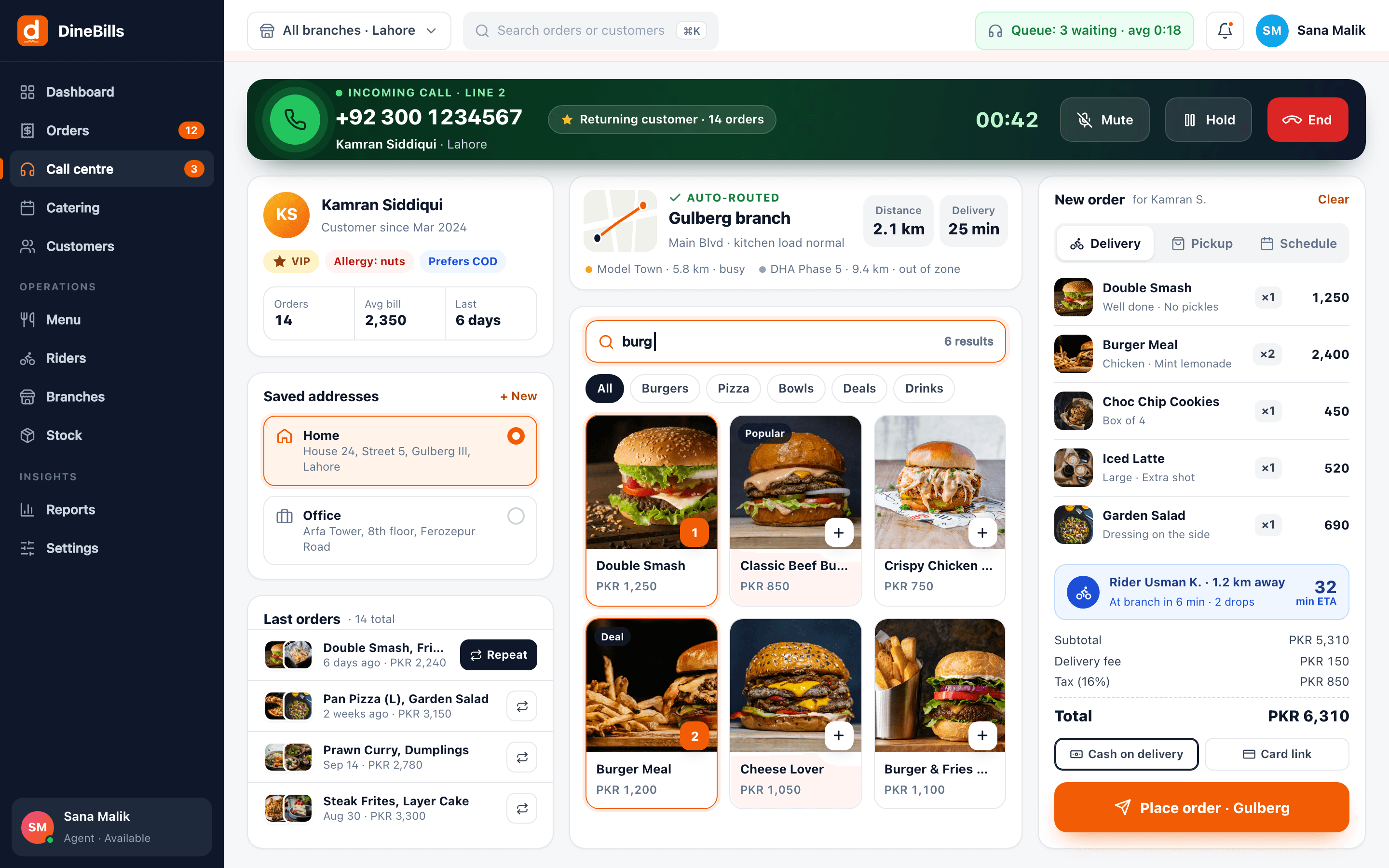
The caller says hello and the agent already knows the address, the last order and the nearest branch. The order lands in that kitchen without a second phone call.
For chains that take delivery orders by phone, the hard part is not answering the call. It is getting the order to the right kitchen, correctly, and knowing what happened next.
Agents ask regulars for their address and order every time because they cannot see history. Calls take longer and the line backs up.
Choosing the branch by memory sends orders to kitchens that are too far away or already overloaded.
The call centre relays orders to branches by phone or messaging apps, where they are retyped and sometimes lost.

When a customer calls back to ask "where is my food", the agent has to call the branch to find out.
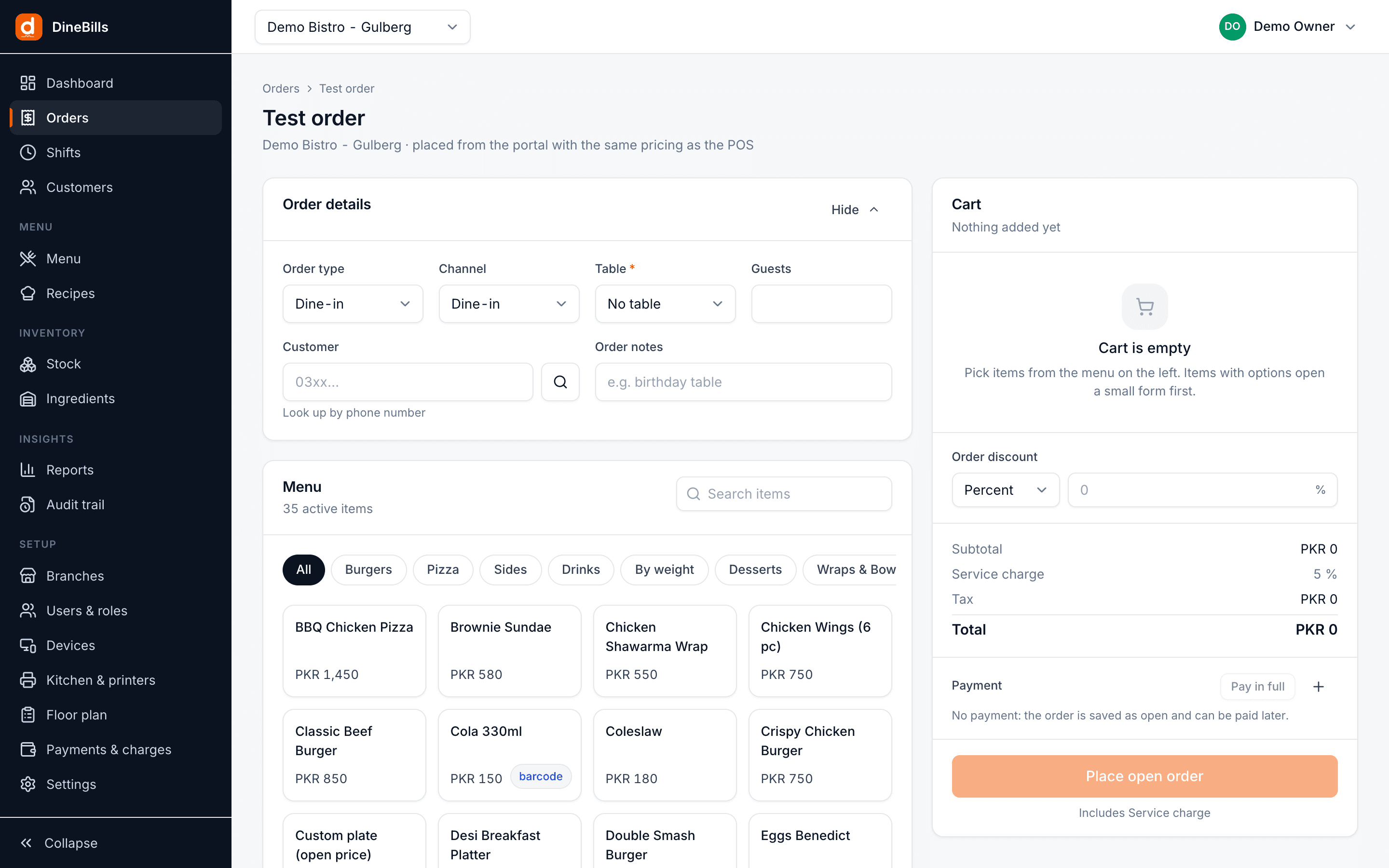
Call centre agents work in the DineBills web portal. Branches receive orders on their POS and kitchen screens with no retyping.

Type the caller’s phone number and see their name, saved addresses and order history. Repeat a past order in one click, or start fresh with the same address.
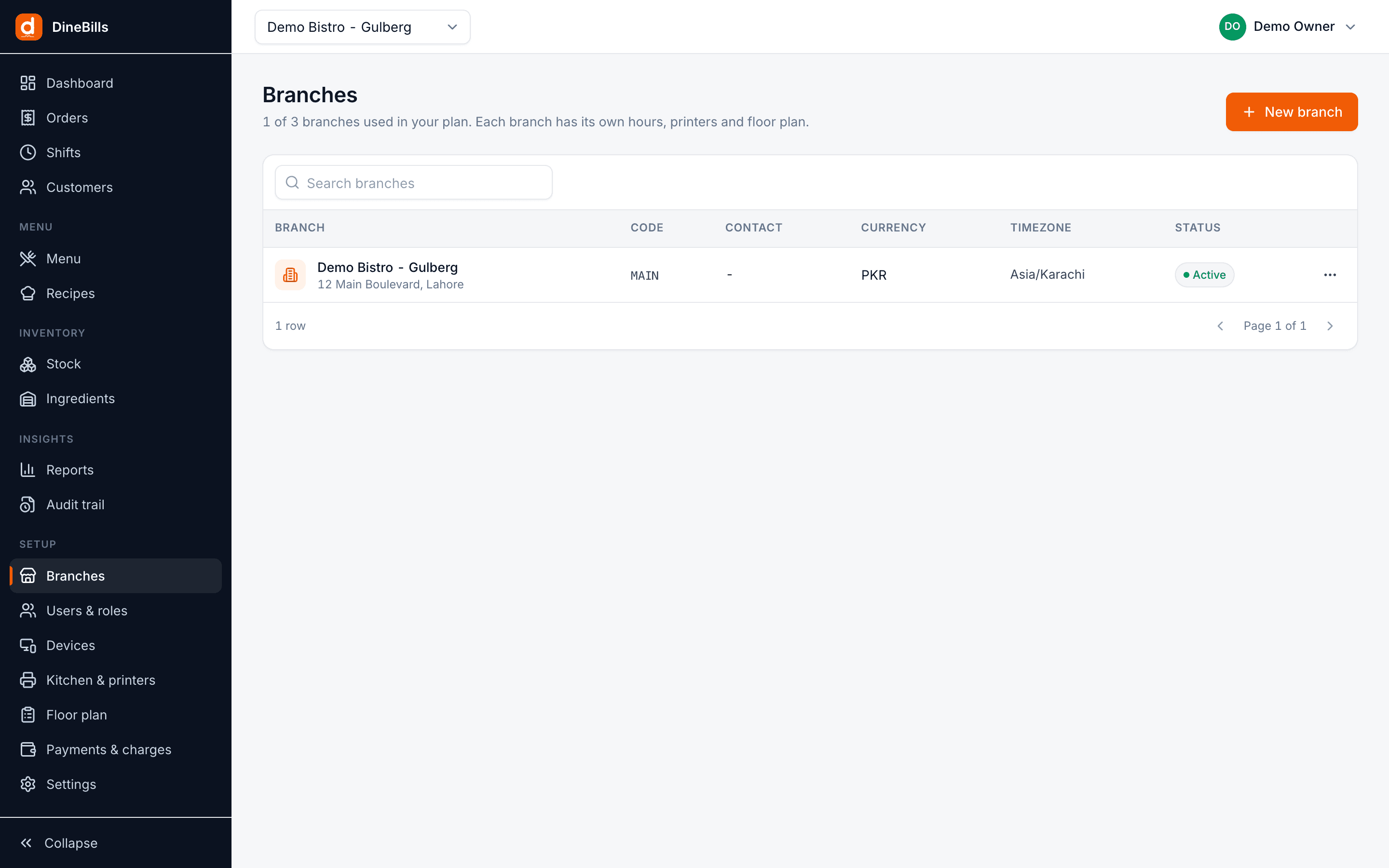
The delivery address is matched to a branch by delivery zone, and the order uses that branch’s menu, prices and availability. Items that are sold out at that branch cannot be ordered.
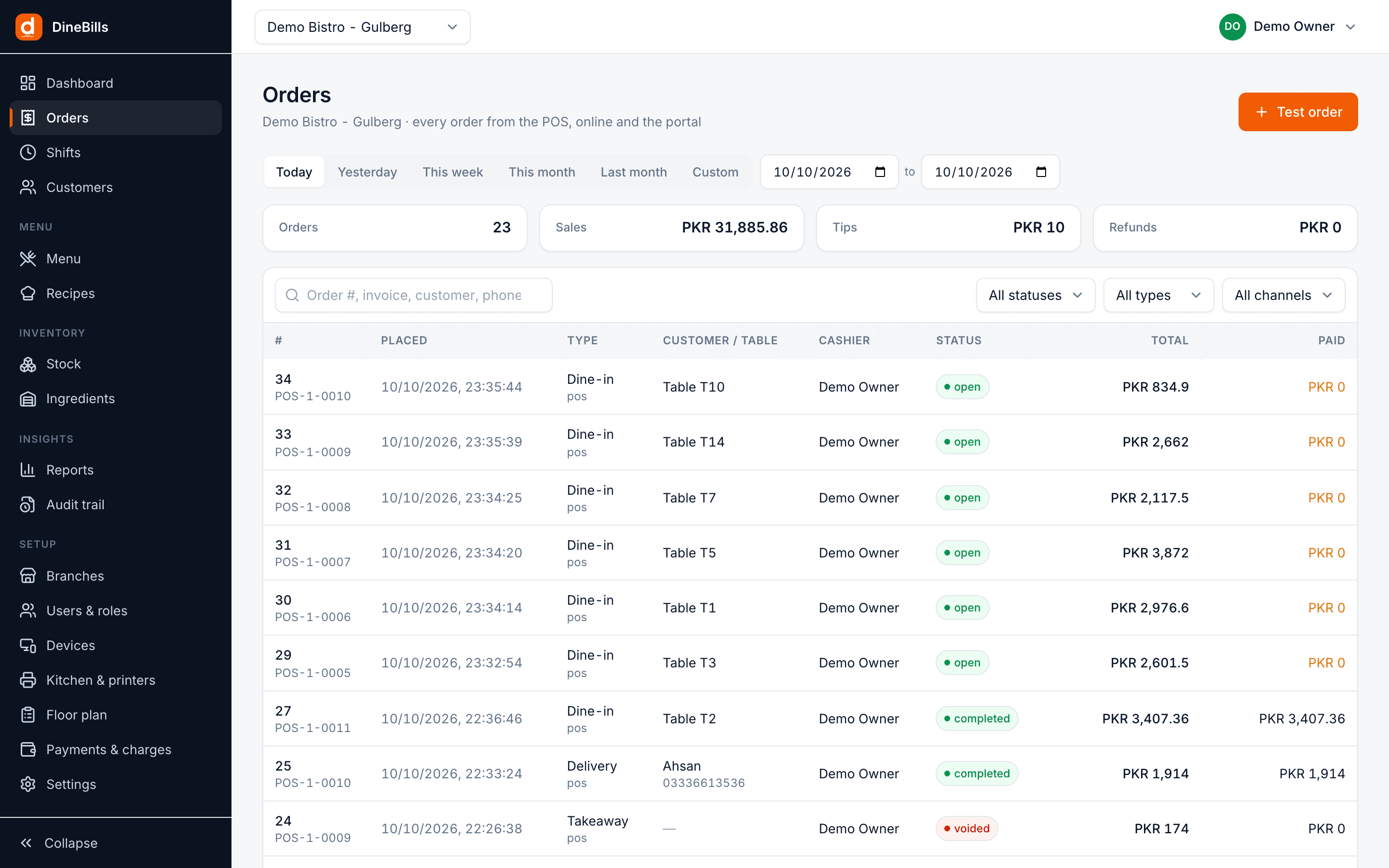
The order arrives at the branch POS and prints or displays at each kitchen station within seconds. The call centre sees its status change from accepted to cooking, out for delivery and delivered.
The full path of a call centre order in DineBills.
Phone number brings up the customer and addresses.
Menu, modifiers and deals at the right branch prices.
The address picks the nearest branch by zone.
KOTs print or display at the branch stations.
The branch assigns a rider when the order is packed.
Agents see each order until it is delivered.
Built into the same back office your branches already use.
Fast order screen in the browser, no install needed.
Phone lookup, saved addresses and history.
Delivery zones decide which branch cooks.
Take orders for every brand from one desk.
Printed or on KDS at each station.
Dispatch and cash-on-delivery settlement.
Agents can take orders without branch admin rights.
Orders by agent, branch, zone and hour.
Who changed, cancelled or refunded what.
Every second an agent spends searching is a second the next caller waits. The order screen is built to keep calls short.
Type or paste the number and see the name, addresses and last orders.
Regulars ask for “the usual”, and the agent adds it in one click.
Agents never promise a dish the chosen branch has run out of.
Answer “where is my food” without phoning the branch.
Still curious? Talk to our team.
No. The order entry screen is part of the DineBills web portal and runs in any modern browser. Give agents a role that lets them take orders without access to settings or other admin areas.
Each branch has delivery zones. When the agent enters or picks the customer’s address, DineBills matches it to the branch that covers that zone and applies that branch’s prices, taxes and sold-out items.
Yes. Agents choose the brand first, and see only that brand’s menu and branches. All brands share the same customer address book.
The order goes to the branch POS and its kitchen stations in seconds, as printed KOTs, on the kitchen display, or both, exactly like an order taken at the counter.
Yes. The order list shows live status for every order, so agents can answer "where is my food" without calling the branch, and managers can spot branches that are falling behind.
Same platform, same menu, same back office. Mix counters, tables, delivery and catering as you grow.

Three taps from order to paid
Explore
Tables, courses and table-side ordering
Explore
Fast counters, weighed items, loyalty
Explore
Every channel in one queue
Explore
Advance orders, deposits, large menus
Explore
Central menu, branch control
Explore
High volume, small footprint
Explore
Book a demo and we will walk through a phone order from lookup to delivery, using your own branches.
No credit card required · Setup help included · Cancel anytime