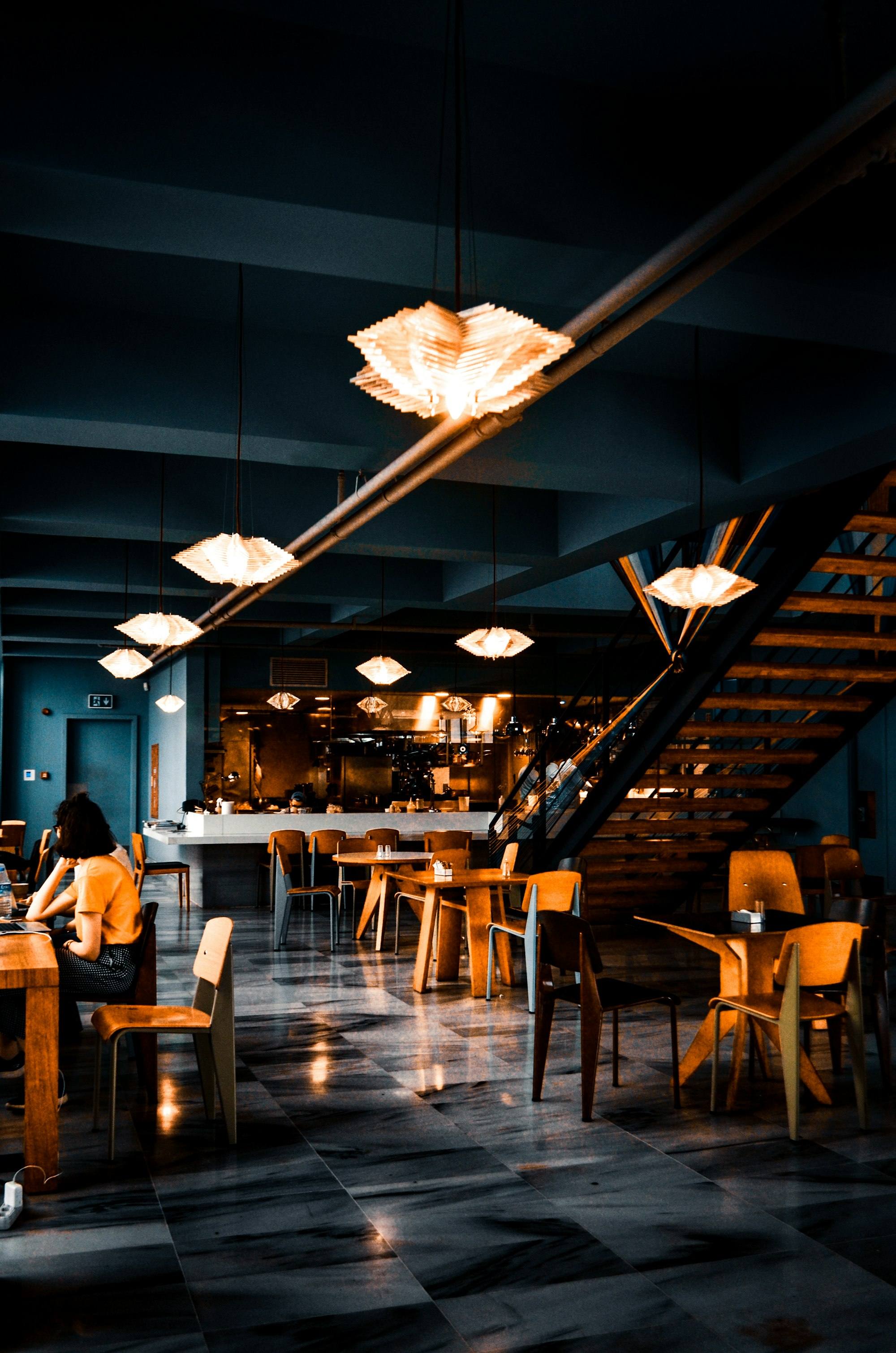
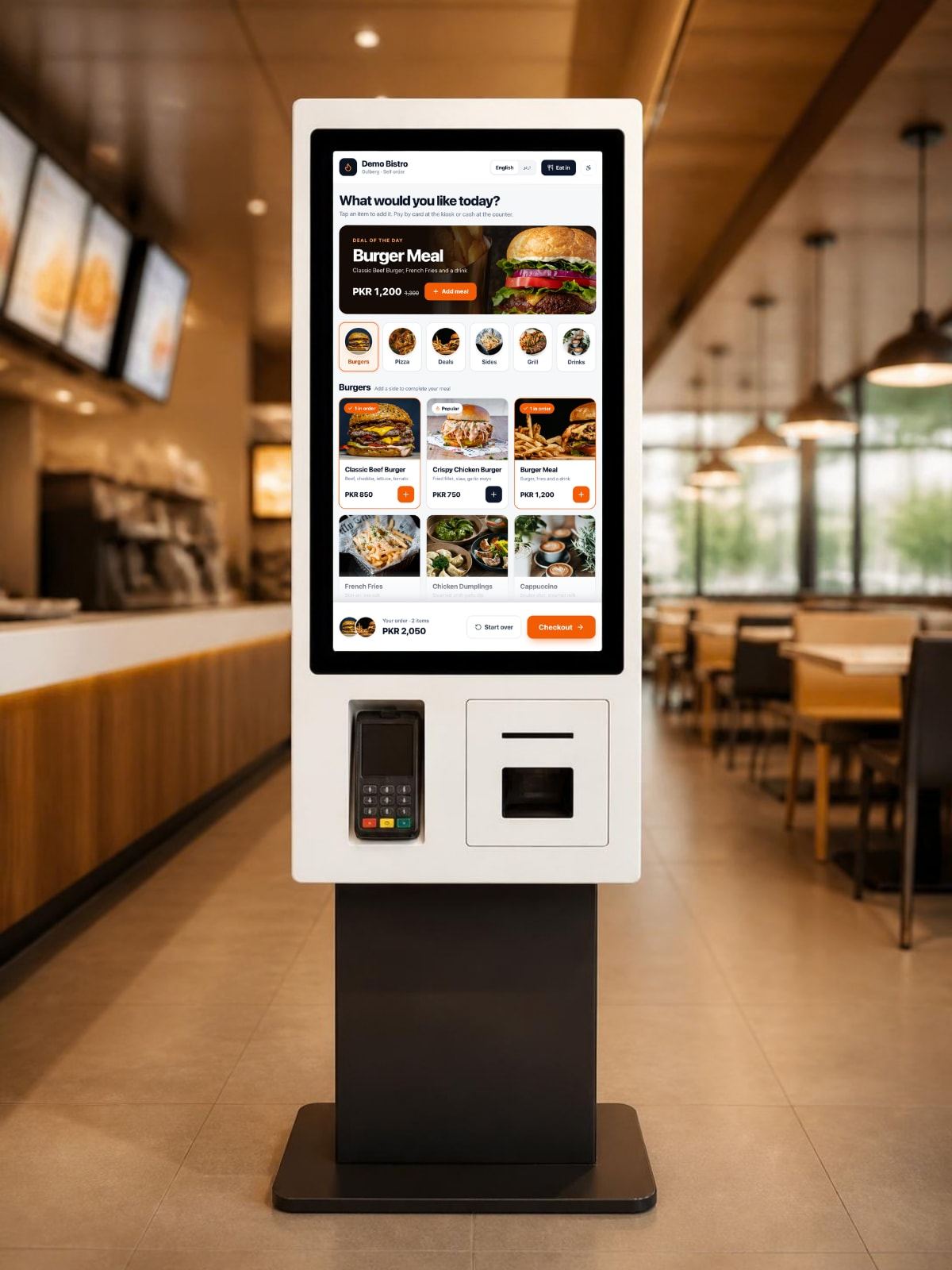
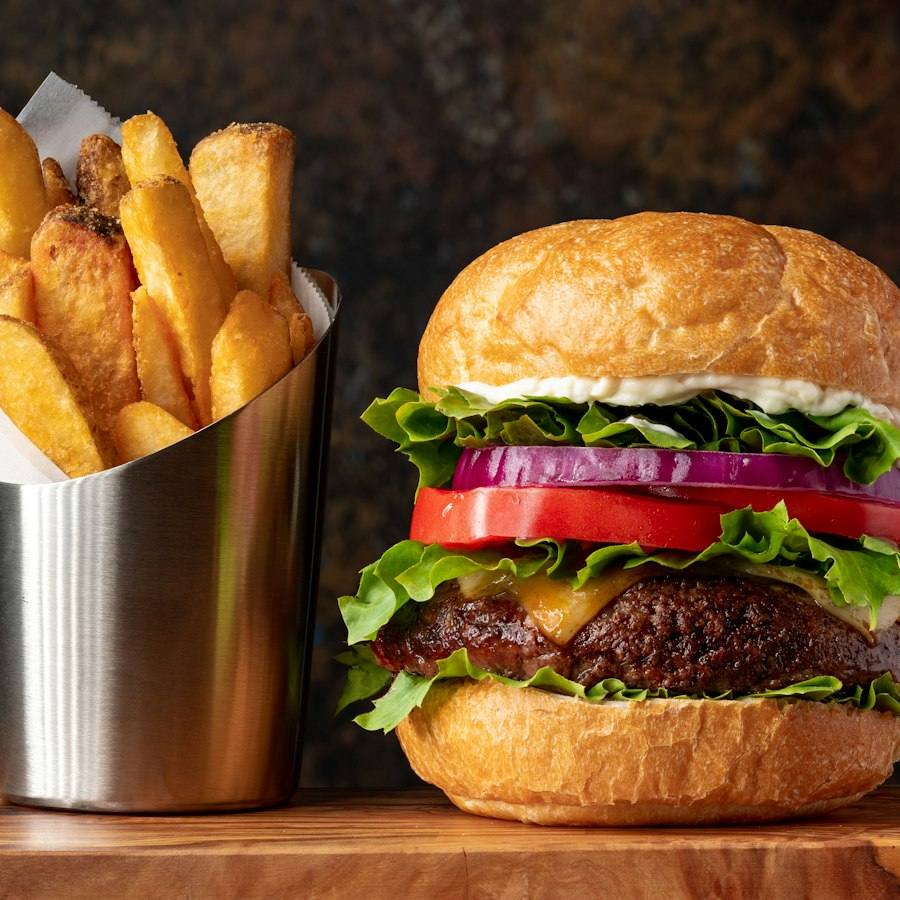
Let guests order themselves. And add the fries.
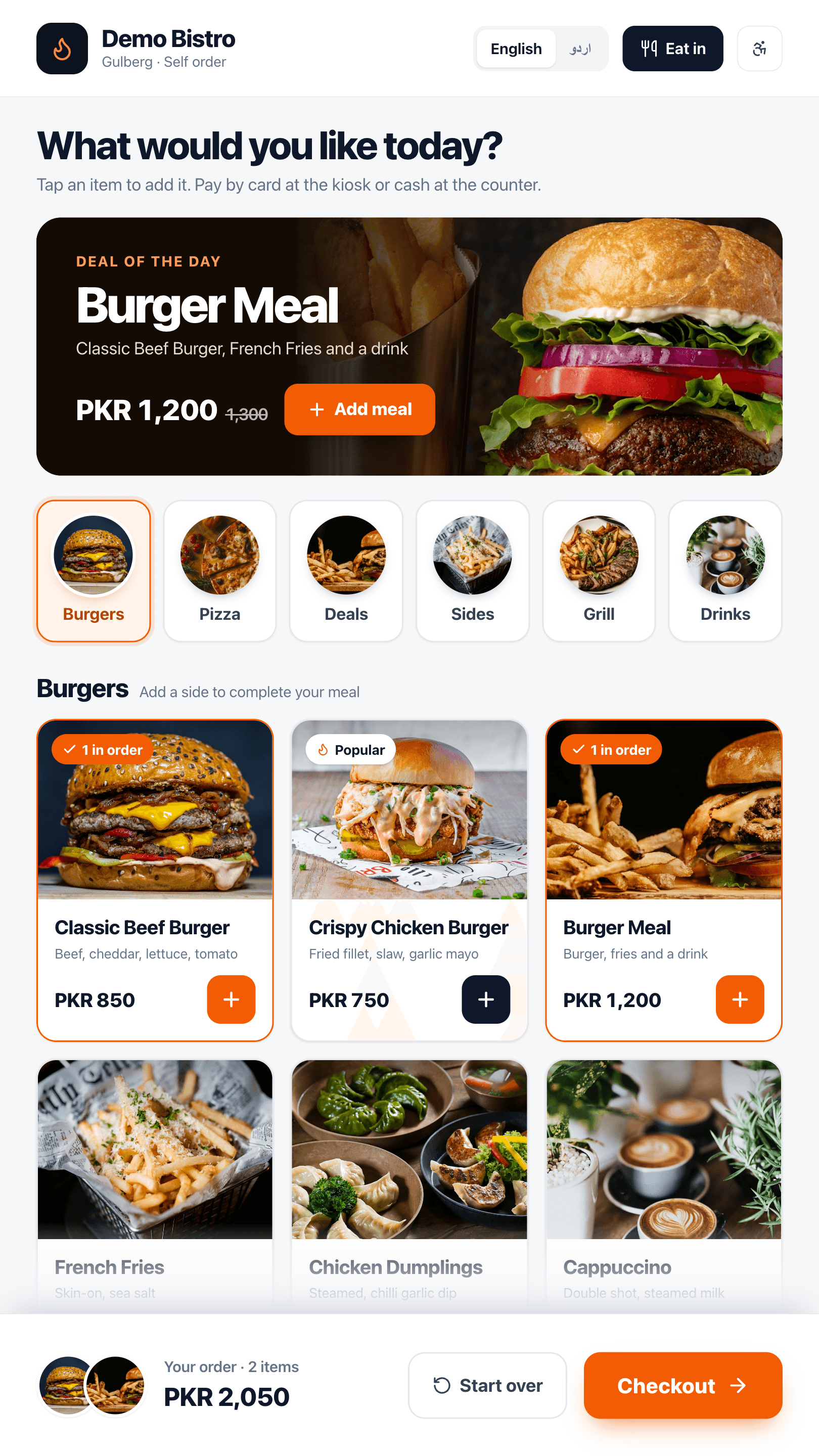
A photo menu on a touchscreen that never gets tired of saying “Make it a meal?”. Guests browse, customise and pay in their own language, and the order is on the kitchen screen before they put their card away.
- Photo menu
- Smart upsells
- Card, wallet or pay at counter
- English, اردو, العربية
- From a tap to a response on the kiosk screen
- < 50 ms
- From a tap to a response on the kiosk screen
- Languages on every kiosk: English, Urdu and Arabic, right-to-left included
- 3
- Languages on every kiosk: English, Urdu and Arabic, right-to-left included
- To install it: floor-standing, wall, countertop or a tablet
- 4 ways
- To install it: floor-standing, wall, countertop or a tablet
- Synced from the back office, prices and sold-outs included
- 1 menu
- Synced from the back office, prices and sold-outs included
From “just looking” to order A27 in four taps.
No app to download, no queue to stand in. The kiosk walks every guest through the same fast path.
-
Step 1
Tap to start
A branded attract loop of your best dishes plays until someone walks up. One tap, pick Eat in or Take away, pick a language.
-
Step 2
Build the order
Big food photos, categories and deals. Required choices like size and patty are asked in order, and extras are a tap each.
-
Step 3
Say yes to more
Before checkout the kiosk suggests the meal upgrade, a side or a drink, based on what is already in the basket. Never more than one prompt at a time.
-
Step 4
Pay and pick up
Tap a card or wallet, or choose Pay at counter. The guest gets an order number, the kitchen gets the ticket, and the pickup screen calls it when ready.
Bigger tickets. Shorter lines. Staff where they matter.
A kiosk offers the upsell every single time, takes orders from four guests at once and never gets an order wrong because of the noise.
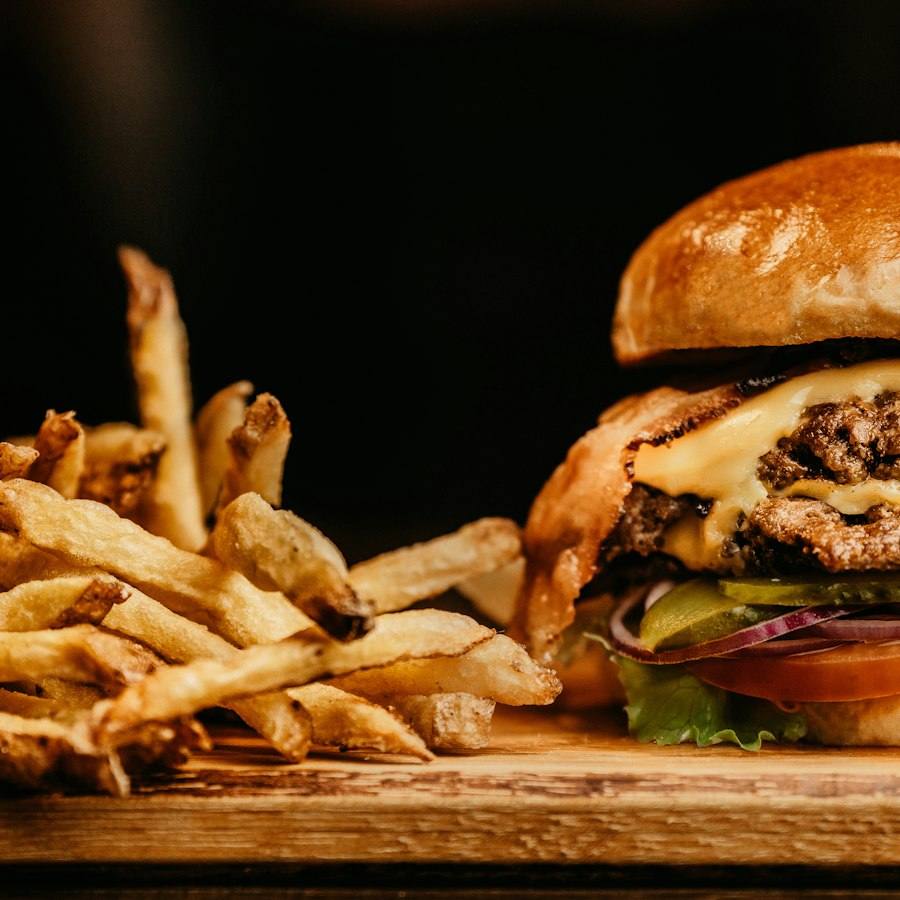
The upsell is offered on every order, politely.
Meal upgrades, sides, drinks and desserts, suggested from what is in the basket.
Four guests ordering at once.
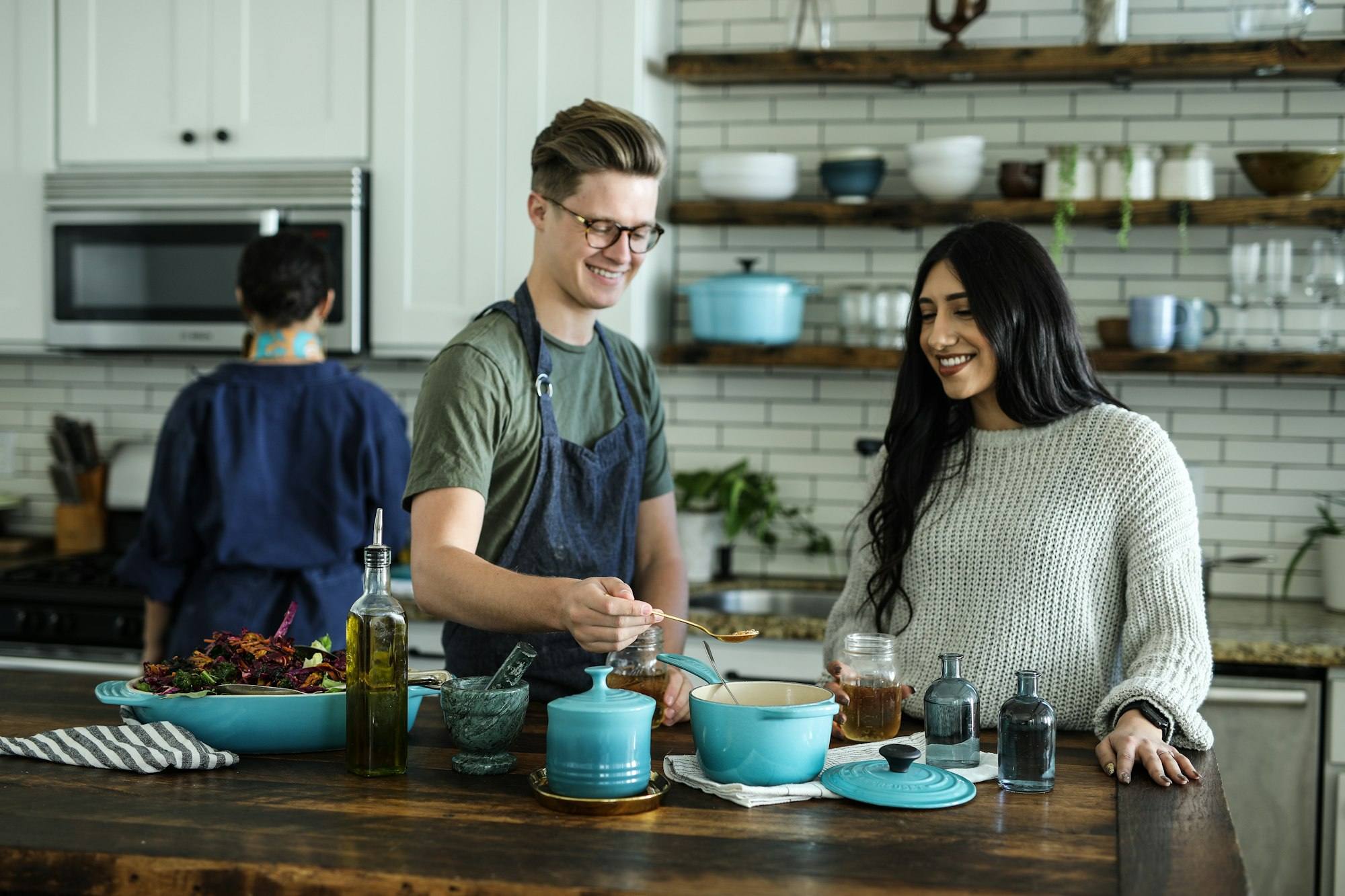
Cashiers back on the line and the floor.
Nobody shouting “burger for Ali?” ever again.
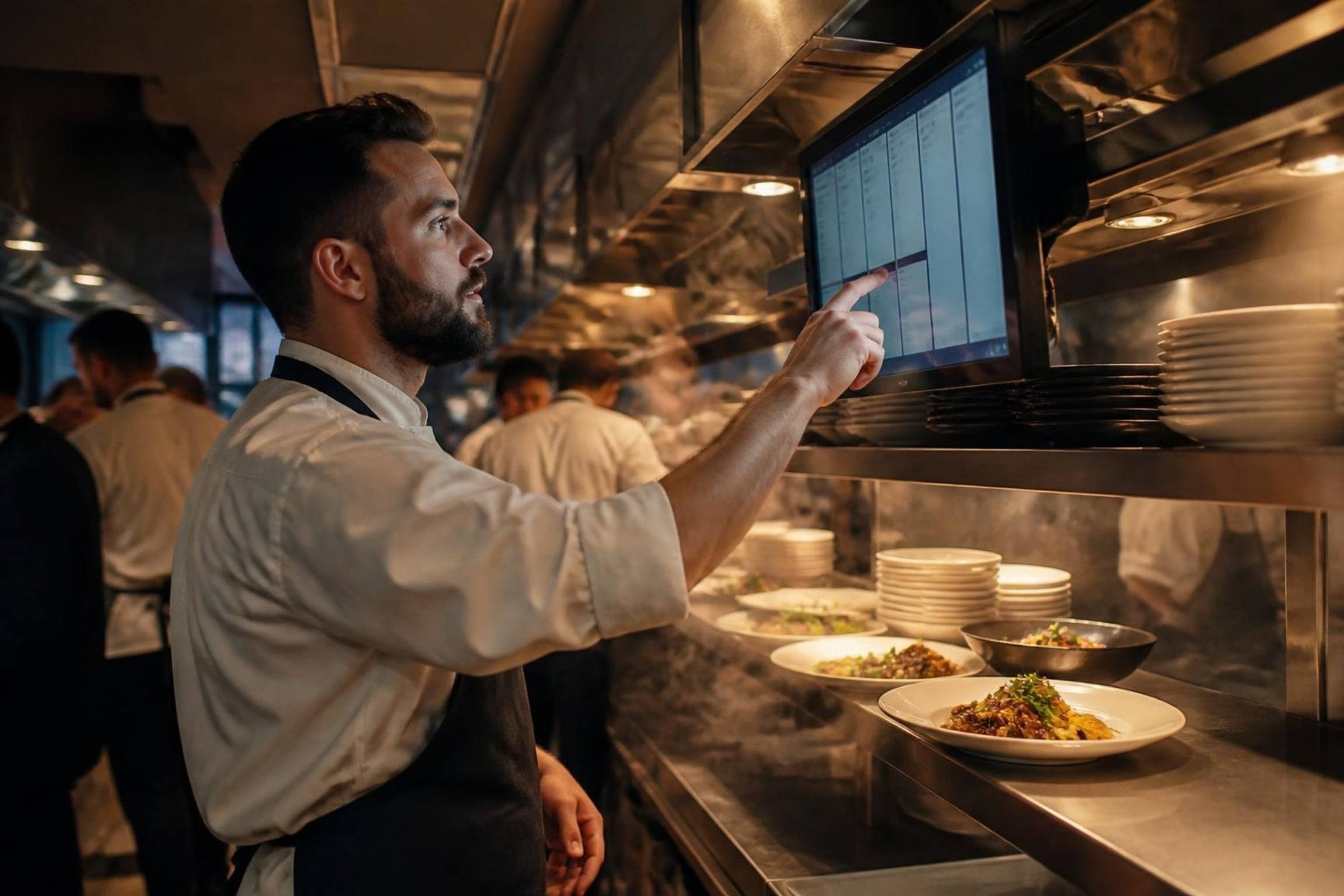
Every kiosk order gets a short number on screen and on the receipt. The kitchen bumps it on the KDS and it jumps to Ready on the pickup screen, with a chime.
- Number on screen and receipt
- Ticket on the right KDS station
- Pickup screen on any TV
- Optional SMS when ready
Every guest orders in their own language.
English, Urdu and Arabic with proper right-to-left layouts. Guests switch with one tap; item names and descriptions are translated in the back office.
Everything within reach.
One tap moves the whole menu into the lower half of the screen, with larger text and higher contrast, for guests using a wheelchair, children and anyone who prefers it.
Floor, wall, counter or the tablet you already own.
The same kiosk software on every form factor. Mix them in one store and manage them all from the back office.
Floor-standing
The full lobby kiosk, 21.5 to 32 inch portrait, with card reader and receipt printer built in.
Wall-mounted
Same screen, no footprint. Ideal for food courts, corridors and tight counters.
Countertop
A tilted screen on the counter so queues split in two: one for the cashier, one for the kiosk.
Tablets you own
Android, Windows or iPad on a stand or enclosure. Pair it and it becomes a kiosk.
Card readers, receipt printers and enclosures are on the hardware page. Curious how the kiosk keeps going without internet? See why DineBills works offline.
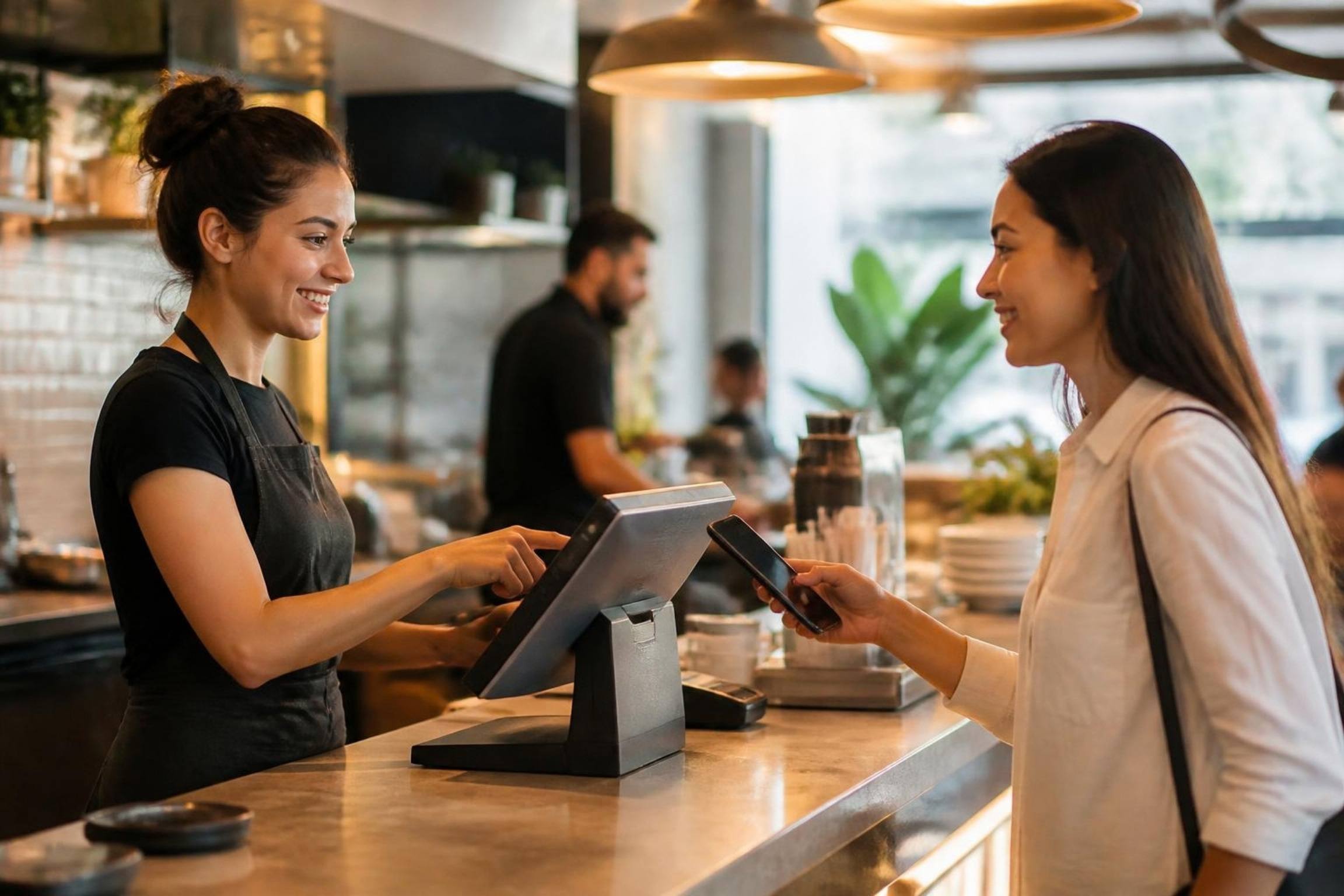
One menu. Every kiosk. No re-keying.
The kiosk is not a separate system. It reads the same menu, prices, taxes and kitchen routing as your POS.
Menu synced from the back office
Change a price, add a deal or mark an item sold out once. Every kiosk shows it within seconds.
Straight to the kitchen
Kiosk orders follow your station rules to the right KDS screen or printer, tagged “Kiosk”.
Offline-safe queueing
If the internet drops, orders queue on the kiosk with their numbers and sync when it returns. Pay at counter keeps working.
Your brand on the attract loop
Upload your own videos and photos for the idle screen, with colours and logo to match your store.
Day-part menus
Breakfast on the kiosk until 11:30, then lunch. Items appear and disappear on schedule.
Kiosk in every report
Sales by channel show exactly what the kiosk sells, and which upsells guests accept.
Frequently asked questions
Still curious? Talk to our team.
What hardware do I need for a self-ordering kiosk?
A touchscreen running Android, Windows or iPadOS. That can be a floor-standing or wall kiosk with a built-in card reader and printer, or a tablet on a stand. Our team can supply and set up the hardware.
Can guests pay cash?
Yes. Guests choose Pay at counter, take their order number to the cashier, and the cashier collects cash on the POS. The kitchen starts when you choose: on order or on payment.
How do upsell prompts work?
You set the rules in the back office: offer a meal upgrade with any burger, a drink if there is no drink, a dessert after 8pm. The kiosk shows at most one suggestion at a time and guests can skip it in one tap.
What happens if the internet goes down?
The kiosk keeps taking pay-at-counter orders and queues them locally with their order numbers. They reach the kitchen through your local printers and sync to the cloud when the connection is back.
Which languages are supported?
English, Urdu and Arabic, with full right-to-left layouts for Urdu and Arabic. Guests switch with one tap, and item names and descriptions can be translated in the back office.
Is there an accessibility mode?
Yes. One tap moves the menu and buttons into the lower half of the screen within easy reach, with larger text and higher contrast.
Works together, out of the box.
Every DineBills product shares one menu, one set of orders and one back office. Nothing to connect, nothing to re-key.
Put a kiosk next to the queue.
Start with a tablet you already own, or let us set up a full lobby kiosk with card payments and a receipt printer.
No credit card required · Setup help included · Cancel anytime