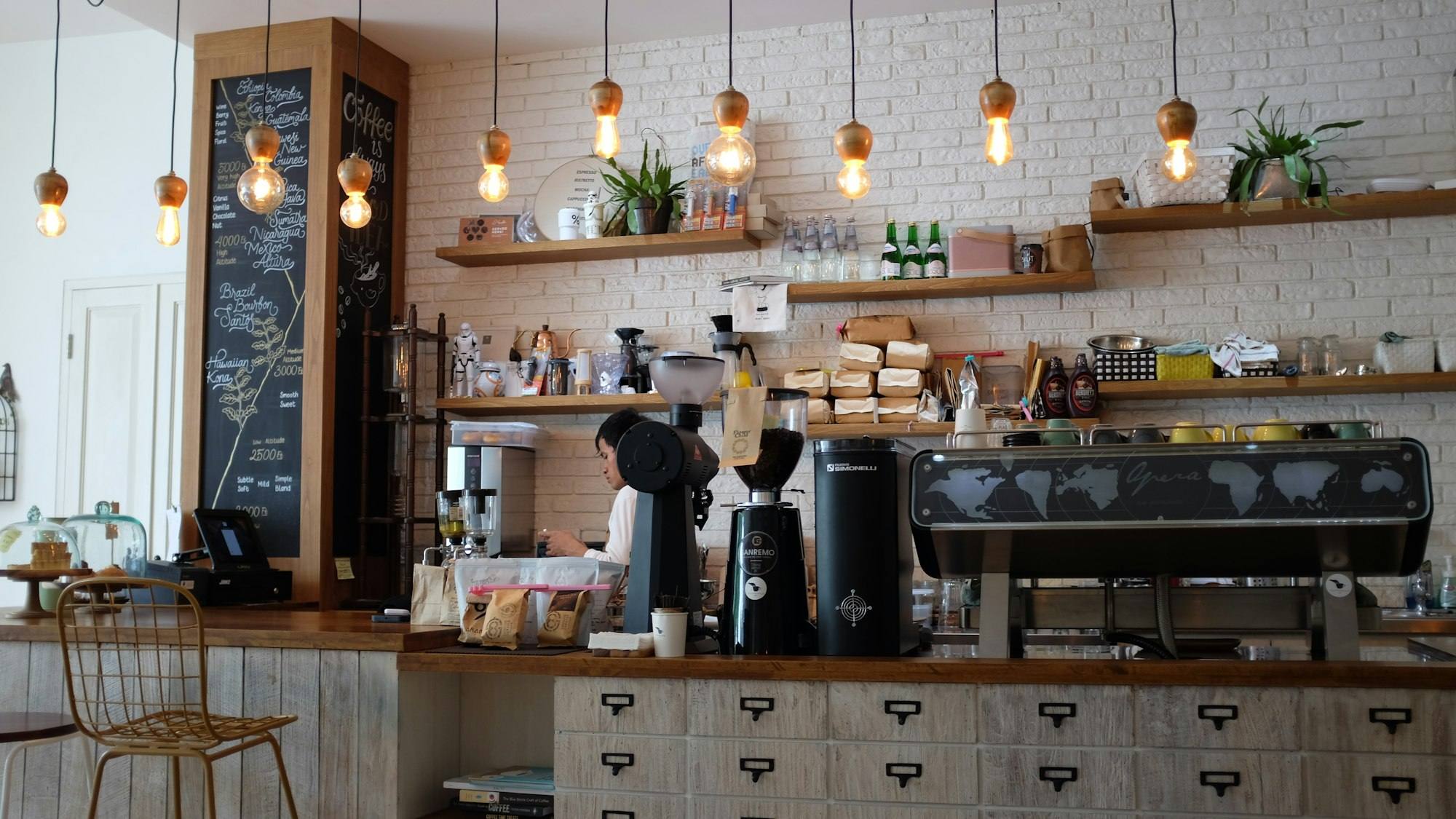
The screens your guests look at.
A customer display that shows every line as the cashier taps it, and TV menu boards that change price, day-part and sold-out the moment you do. Both run from the same menu as your POS.
- Live order lines
- Tip and QR pay
- Day-part boards
- Instant sold-out
- From a tap on the POS to the line on the guest screen
- < 50 ms
- From a tap on the POS to the line on the guest screen
- Day-parts per board: breakfast, lunch and dinner switch on their own
- 3
- Day-parts per board: breakfast, lunch and dinner switch on their own
- POS, kiosk, online and boards all read the same prices
- 1 menu
- POS, kiosk, online and boards all read the same prices
- Sold-out items drop off every board and kiosk at once
- Instant
- Sold-out items drop off every board and kiosk at once
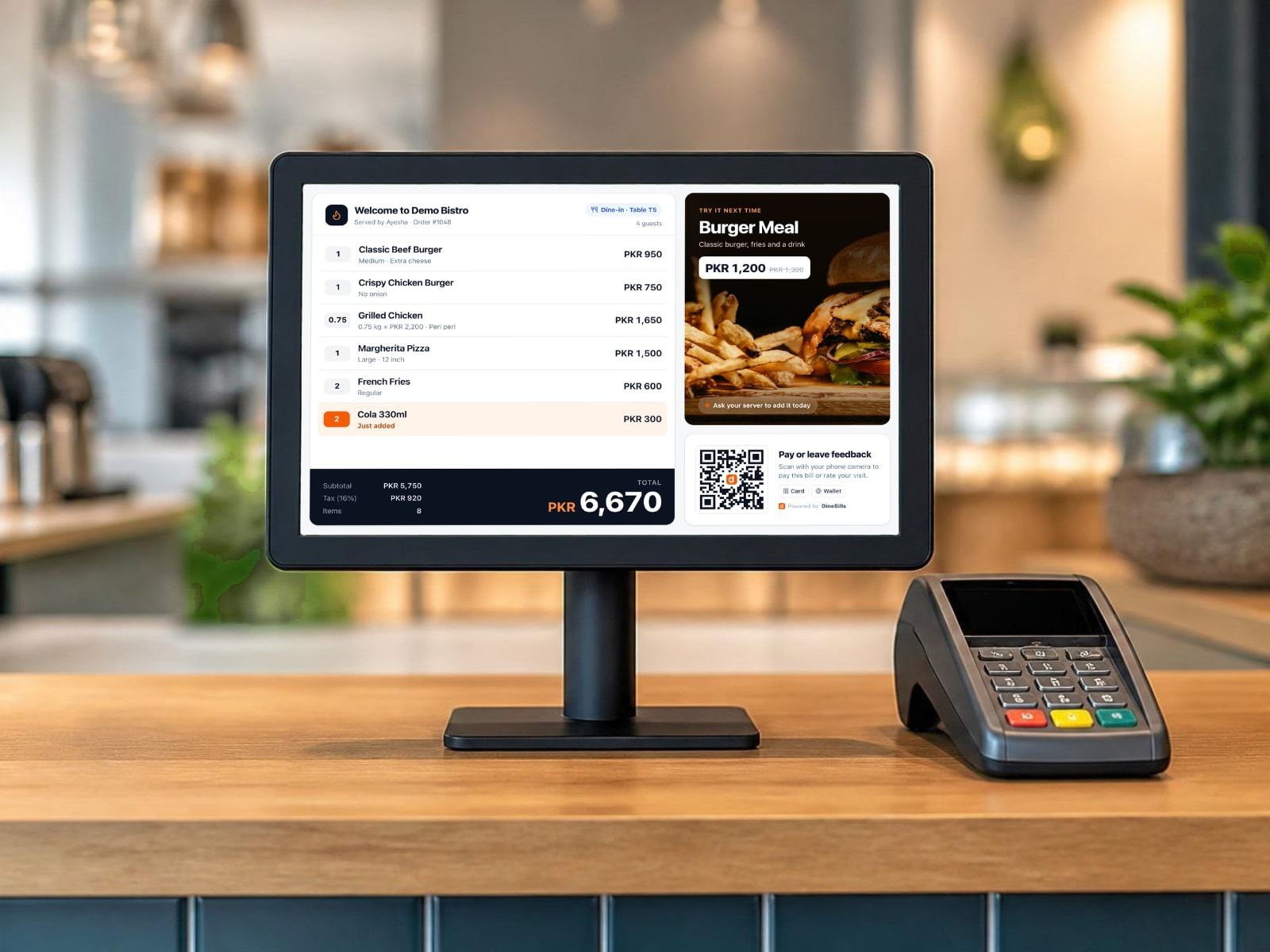
Your guest sees what the cashier sees. As it happens.
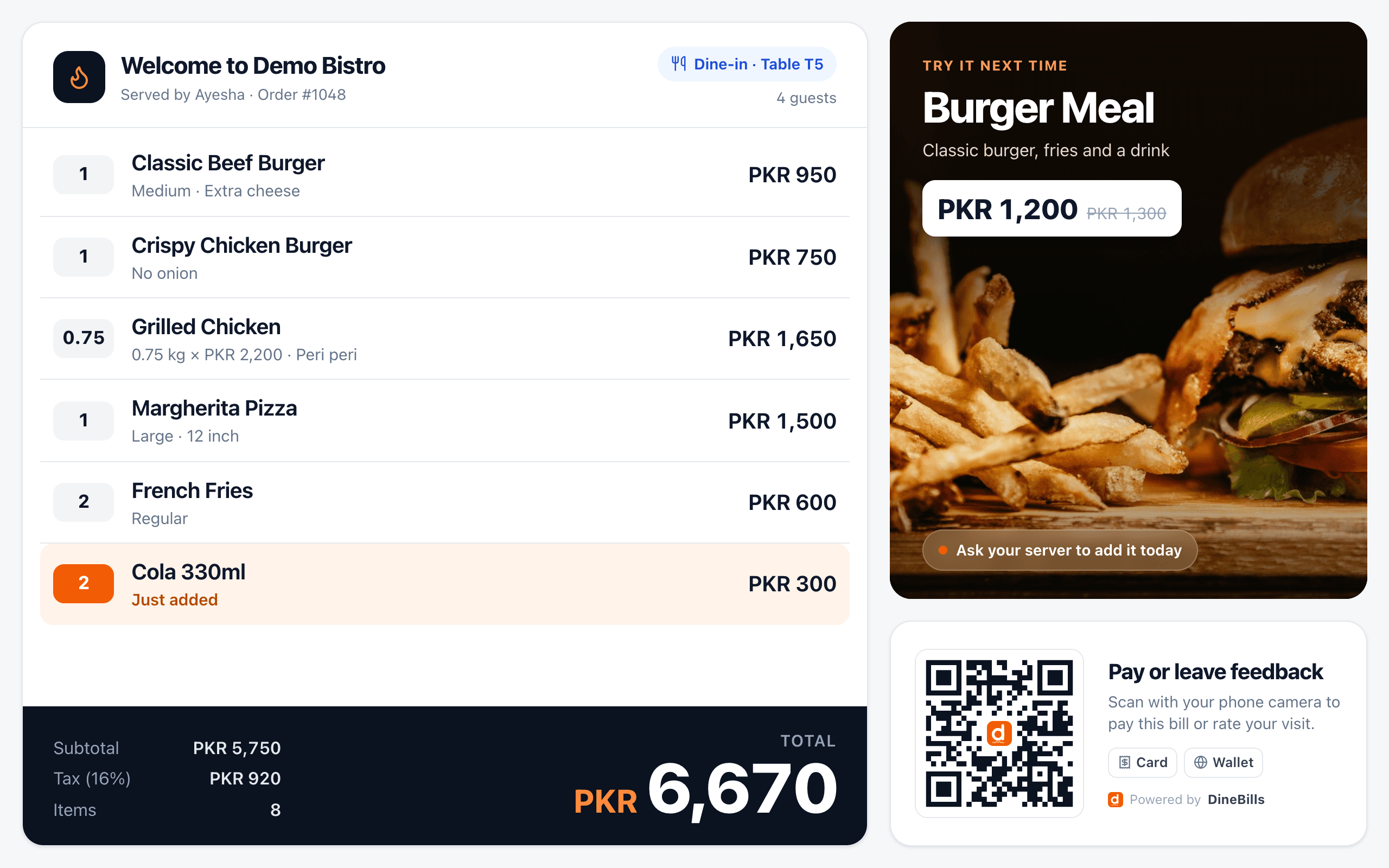
The guest-facing screen mirrors the order on the POS line by line, so mistakes get caught before the receipt prints.
Tips, payments and promos, on the guest’s side of the counter.
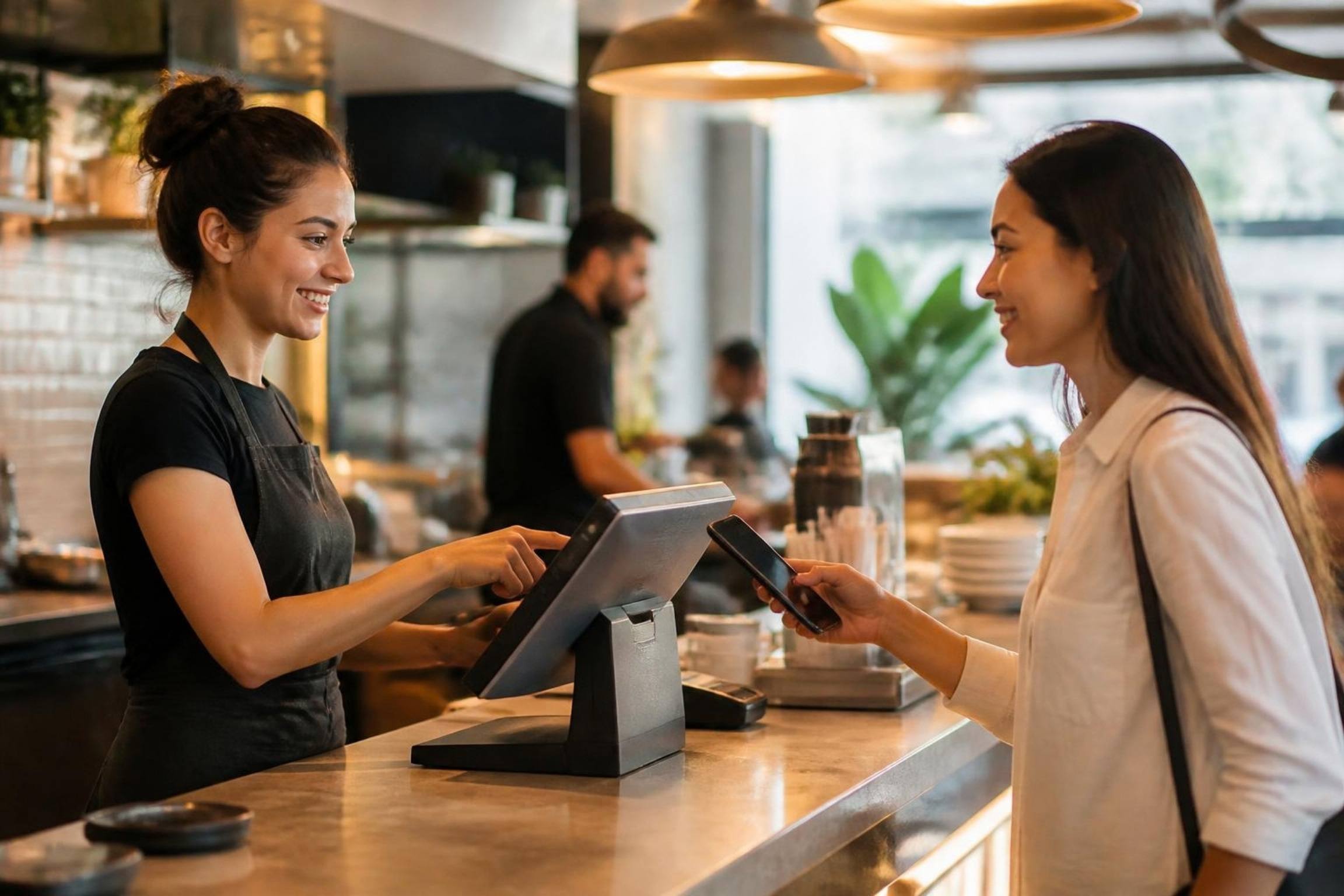
The same screen asks for a tip, takes a QR payment or a rating, and sells your next special while the till is quiet.
A tip prompt guests answer themselves
Your own percentages or amounts, before payment. The tip lands on the bill and in the shift report.
Scan to pay, or to rate the visit
Guests pay the bill from their own phone, or leave a rating that shows up in your reports.

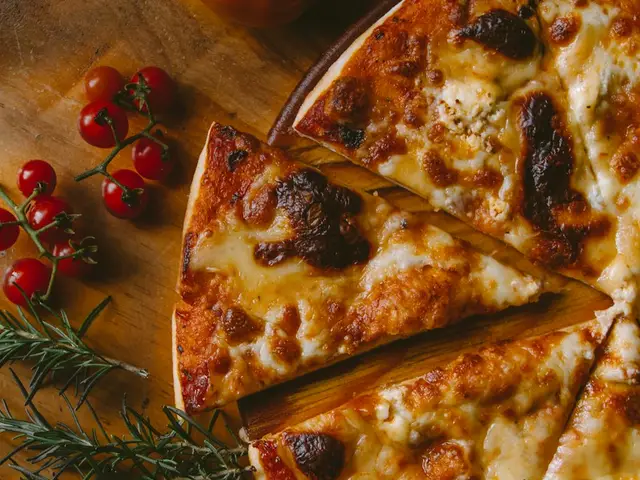

Promo slides while the till is idle
Photos, videos and deals from the back office fill the screen between orders, per branch and per day-part.
Menu boards that update themselves.
Your TVs read the same menu as the POS. Change a price, run out of steak or roll into dinner, and every screen follows, in every branch, without a USB stick or a designer.
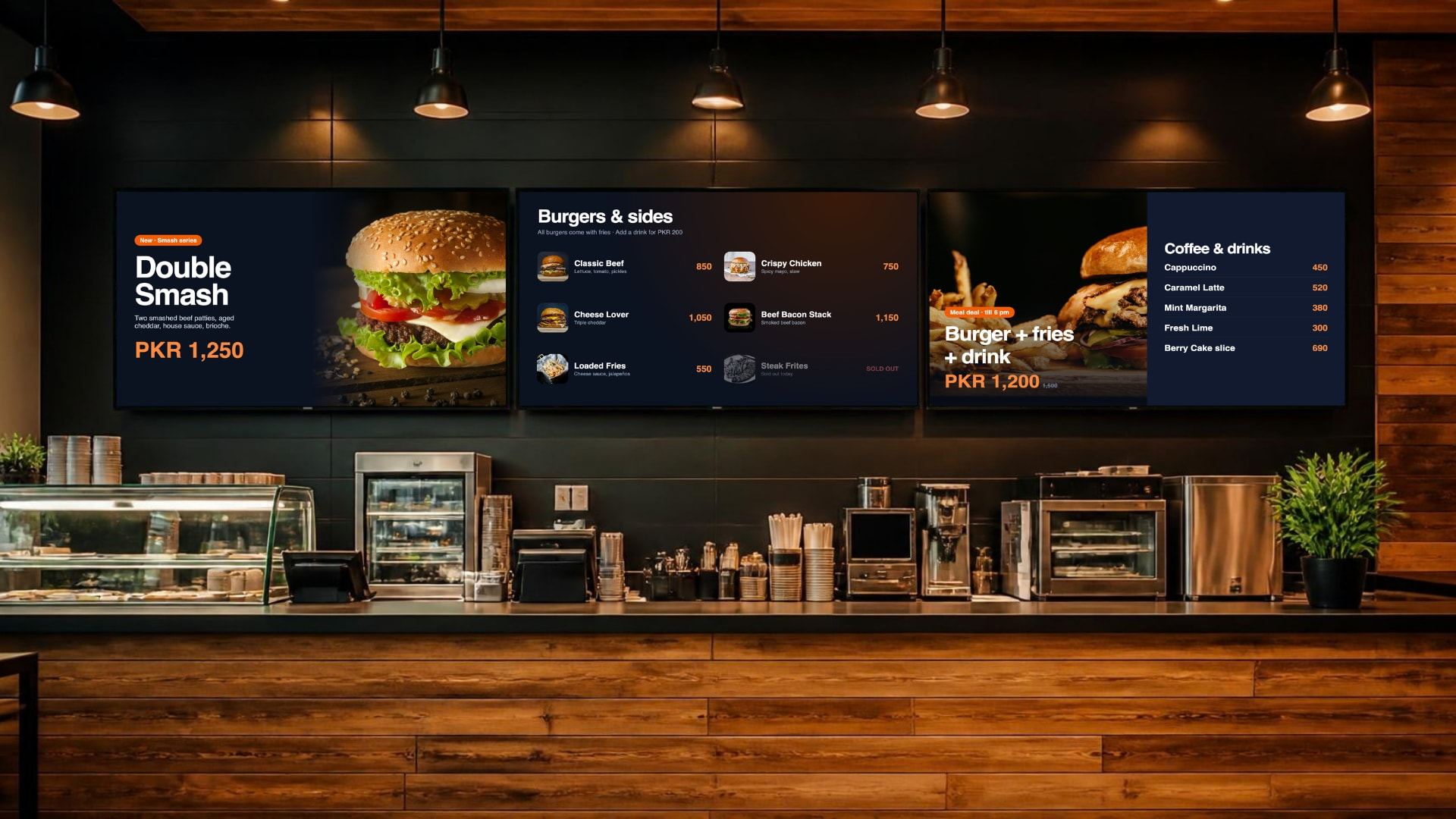
Prices from the back office
Change a price once. The POS, kiosk, online store and every TV update together.
Sold out, everywhere, at once
Mark an item 86 on the POS and it is struck off every board in seconds.
Day-parts on a schedule
Breakfast boards until 11:30, lunch until 4, dinner after 6. No one has to touch the TVs.
Promo video and images
Drop in videos, photos and deal slides between menu panels, or give a whole screen to a launch.
Multi-screen layouts
Spread a menu across two, three or four TVs as one wall, portrait or landscape.
Scheduled per branch
Each branch runs its own schedule and prices, or follows the brand-wide plan.
Price up, steak out, lunch on. Nobody touched a TV.
- Classic Beef Burger: PKR 850 → 900Changed in the back office, live on the board
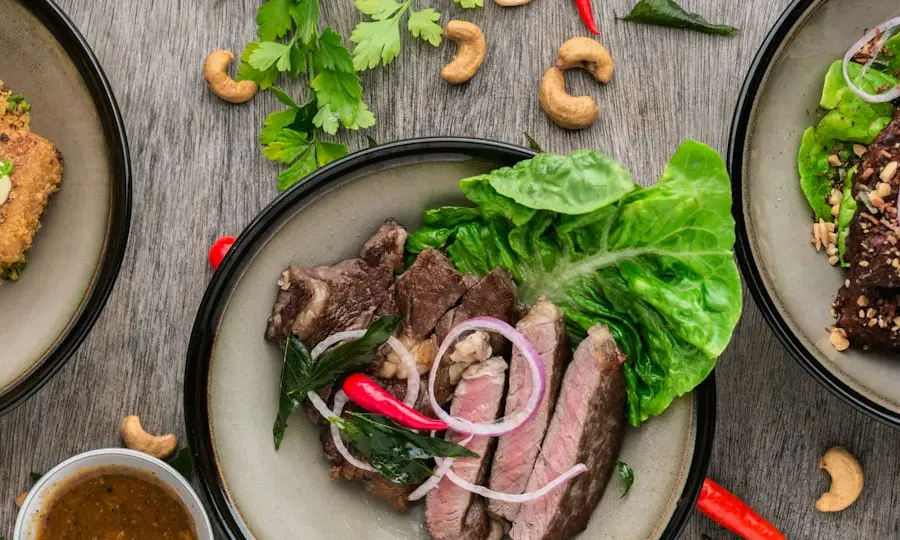
- Pepperoni marked 86 on the POSStruck off every screen with a Sold out label
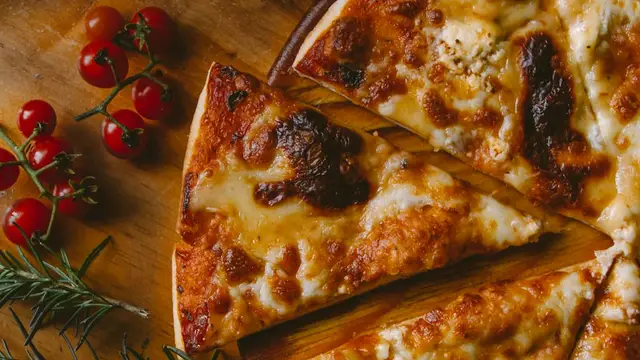
- Breakfast → Lunch → DinnerPromo screen follows the branch schedule
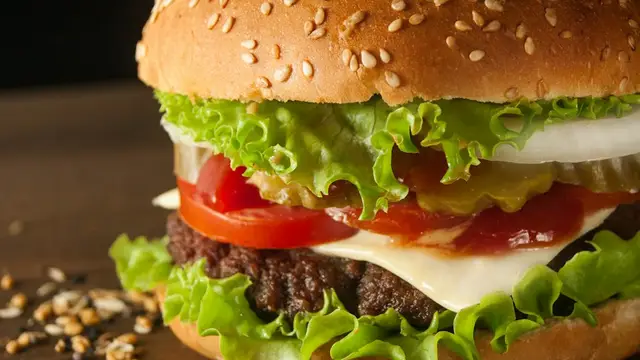
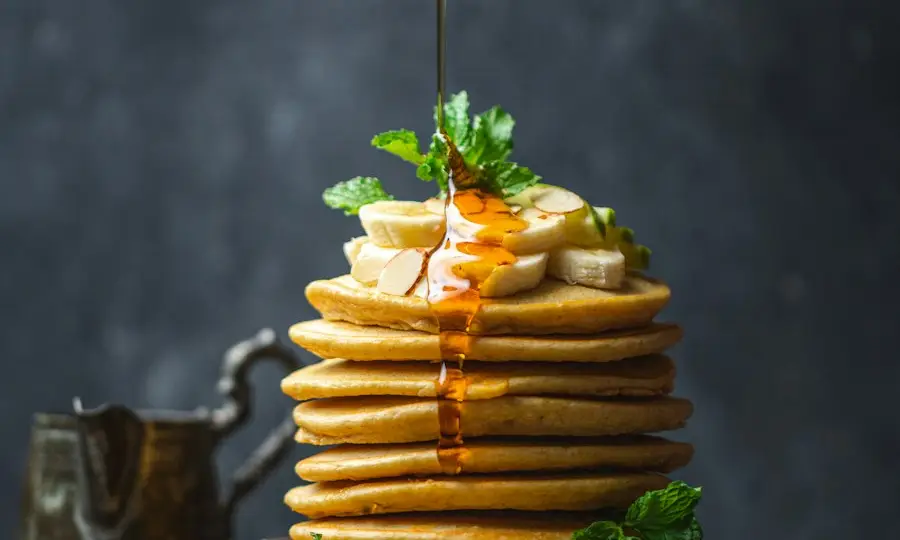
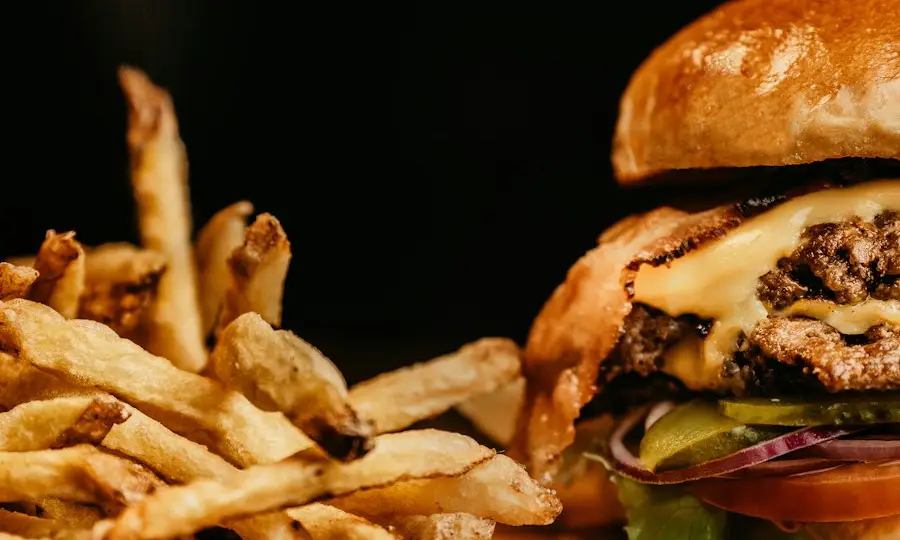
Every branch on its own clock.
Set day-parts once for the brand, then let each branch shift its own times. Boards, kiosks and the online store switch menus together.
Runs on the screens you already have.
No special players or media boxes. See every supported device on the hardware page.
A second screen on your POS
Plug a monitor into the Windows or Mac POS. The guest view opens on it by itself.
A tablet facing the guest
Pair an Android tablet or iPad over Wi-Fi as the customer display for any till.
Any smart TV or TV stick
Menu boards run on Android TV, a TV stick or a mini PC with a browser.
Pair with a code
Open the display link, enter the code from the back office, done. No cables to the server.
Frequently asked questions
Still curious? Talk to our team.
What hardware do I need for a customer display?
A second monitor on your POS, or any Android tablet or iPad paired over Wi-Fi. Many all-in-one POS terminals have a built-in rear screen that works out of the box.
What hardware do I need for digital menu boards?
Any TV with Android TV, a TV stick or a small PC that can open a browser full screen. Portrait or landscape both work.
How fast does a sold-out item disappear from the boards?
Within seconds. Marking an item 86 on the POS or in the back office updates every board, kiosk and the online store at the same time.
Can each branch show different prices or menus?
Yes. Boards follow the branch they are paired to, including branch prices, day-part schedules and local promotions.
Can guests tip on the customer display?
Yes. You can turn on a tip prompt with your own percentages or amounts before payment. The tip is added to the bill on the POS.
What shows when the till is idle?
Your promo slides: photos, videos or deals you upload in the back office. The order view comes back as soon as the cashier starts a new order.
Works together, out of the box.
Every DineBills product shares one menu, one set of orders and one back office. Nothing to connect, nothing to re-key.
Give your guests something good to look at.
Turn on the customer display today on any spare screen, and put your menu on the TV with prices that are never out of date.
No credit card required · Setup help included · Cancel anytime