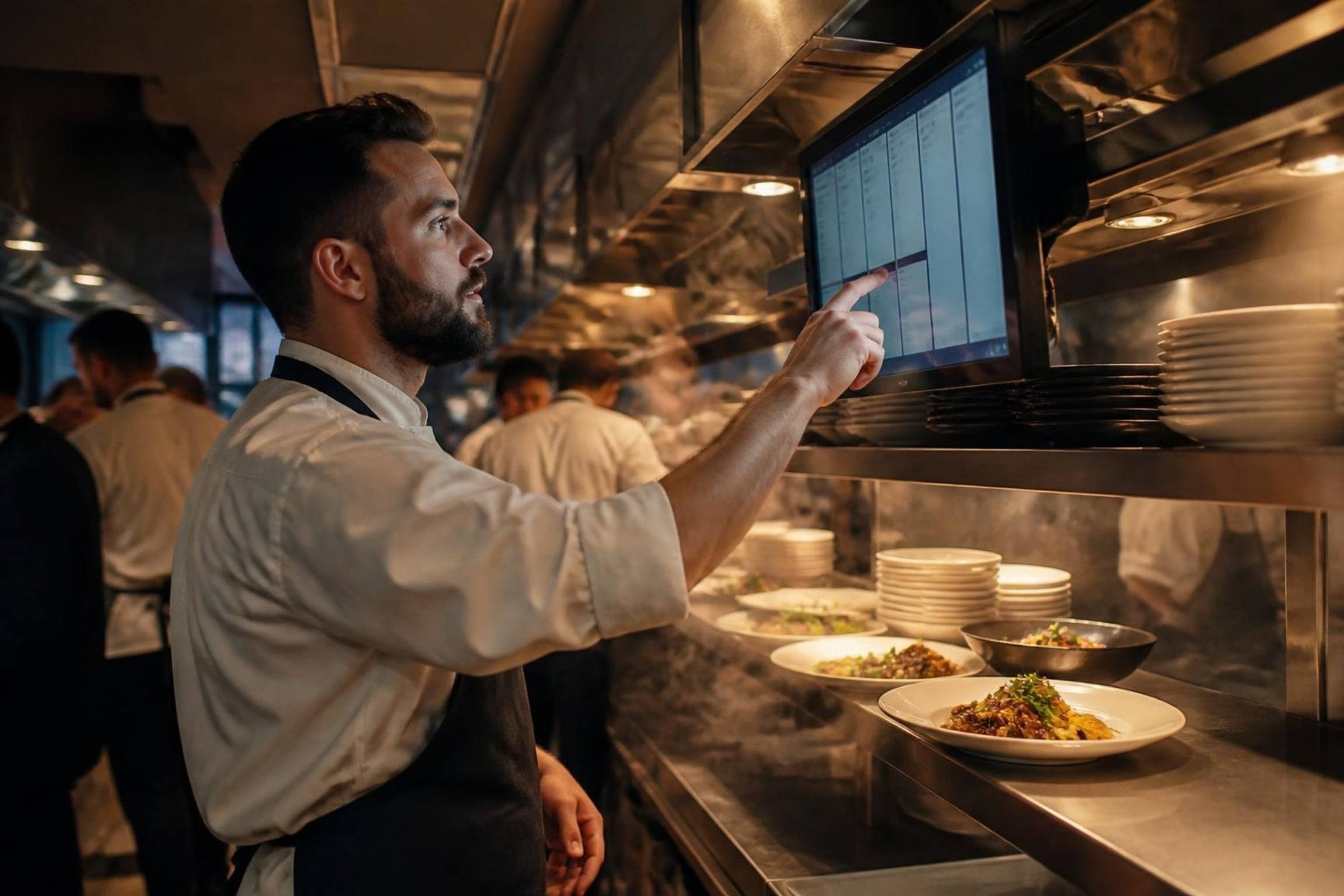
Every ticket on the right screen, in under a second.
Replace the paper rail with a screen per station. Orders from the POS, waiter app and online store land at the grill, fry, bar or dessert station the moment they are sent, and the expo screen sees the whole order come together.
- Station routing
- Expo screen
- Colour timers
- Printer fallback
- From Send on the POS to the ticket on screen
- < 1 s
- From Send on the POS to the ticket on screen
- Green, amber, red timers against your target times
- 3 colours
- Green, amber, red timers against your target times
- One screen that sees every order come together
- Expo
- One screen that sees every order come together
- Printed KOTs if a screen goes offline
- Auto
- Printed KOTs if a screen goes offline
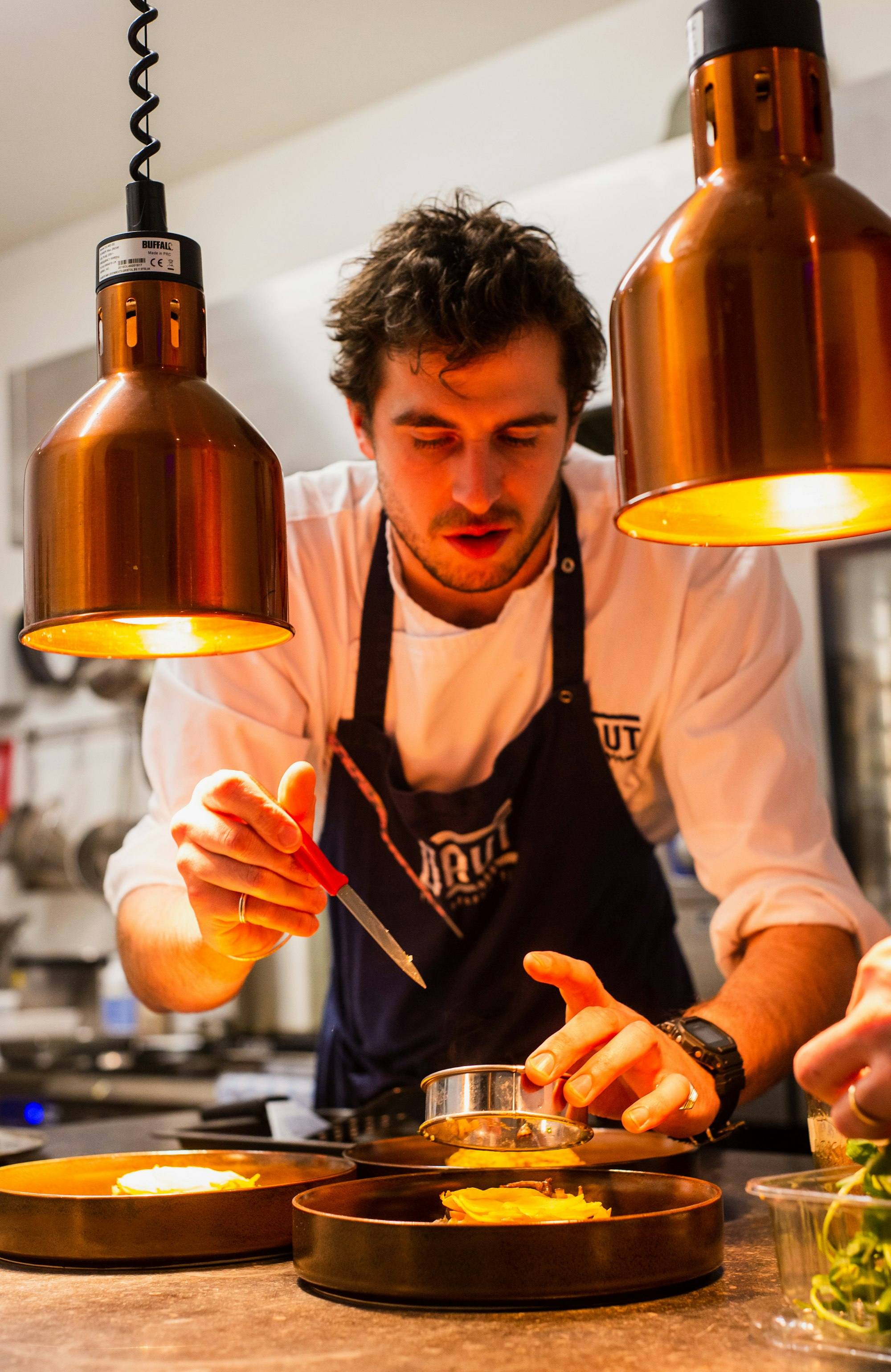
What matters, in the colour that matters.
Ticket cards sit in columns on a dark screen. The header turns from green to amber to red as the ticket ages, modifiers like “No onion” and allergy notes are highlighted, and one tap bumps it.
- On timeUnder target
- Getting closeNear target
- LatePast target
Allergy and “No” modifiers always shown in red, with a label.
The grill sees grill items. The bar sees drinks.
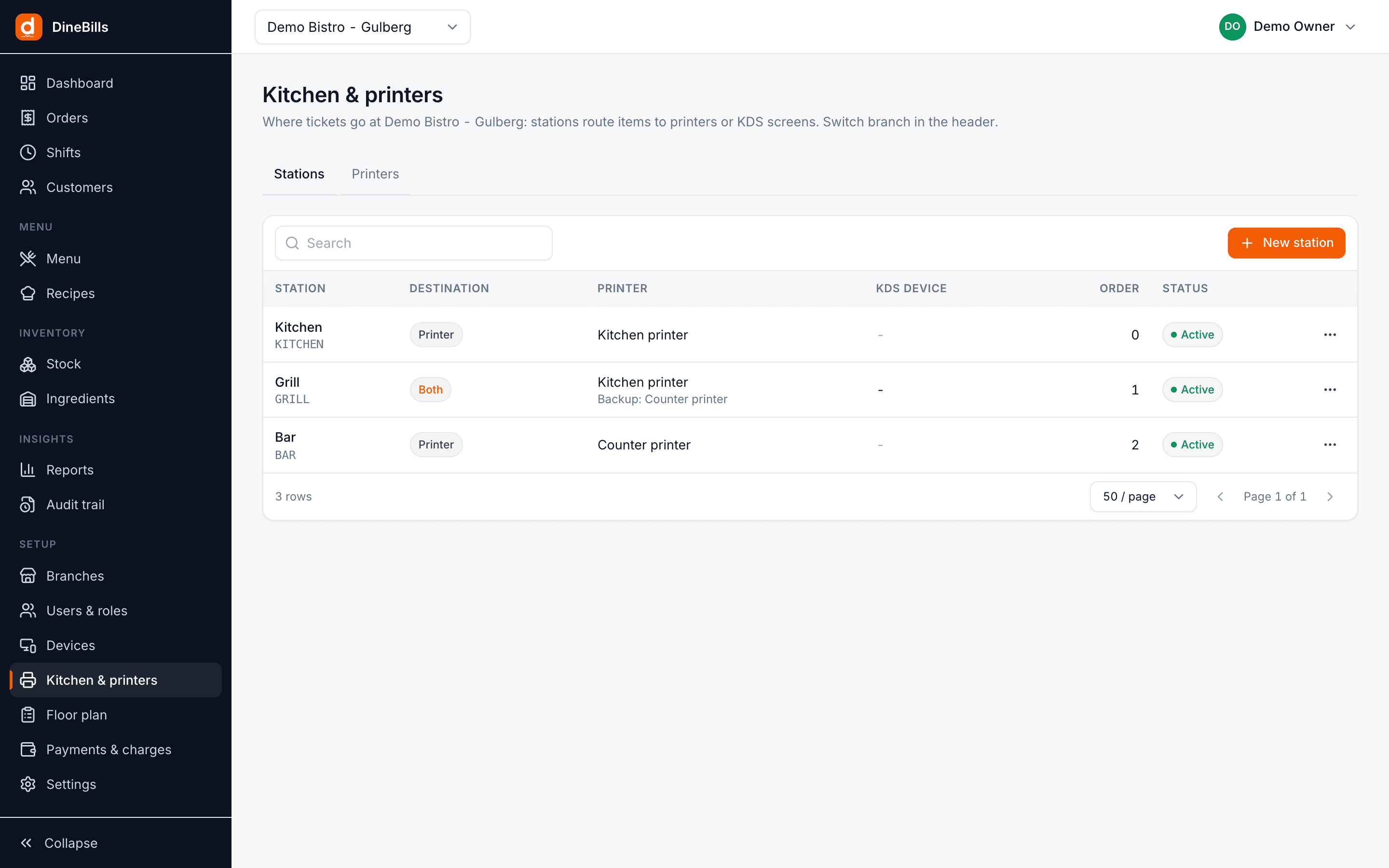
Each item or category is assigned to a station in the back office. When an order spans stations, each screen gets only its own lines, and the expo screen shows the complete order so it leaves the pass together.
- Route by item or by category
- Expo or pass screen with the full order
- Same rules for POS, waiter app and online orders
- Run a station on screen, on paper, or both
Four steps. No shouting.
-
Step 1
Send on the POS
The cashier or waiter taps Send once. No choosing printers or screens.
-
Step 2
Split by station
Each station gets only its own items, in under a second.
-
Step 3
Cook and bump
Timers count up against targets. Cooks bump items as they finish.
-
Step 4
Expo and serve
Expo sees the whole order is ready and the waiter gets an alert.
If a screen drops off, the printer picks up.
Kitchen screens need internet. Your kitchen should not. DineBills watches every screen and falls back to paper automatically.
Heartbeat monitoring
The POS knows within seconds when a station screen stops responding.
Automatic KOT printing
While a screen is down, its tickets print at the fallback printer you chose. No one has to switch anything.
Voids follow the ticket
A voided item is struck through on screen, or printed as a void ticket on paper.
Made for hot, loud, busy kitchens.
Large type on a dark background, clear colours with labels, and controls that work with a tap, a keyboard or a bump bar.
Colour-coded timers
Every ticket counts up against its target prep time and turns amber, then red. Rush orders are flagged.
Bump and recall
Bump a single item or the whole ticket. Recall or undo if it was bumped by mistake.
All-day counts
A running total of every open item, so the grill knows it needs eight patties, not three tickets.
Modifier highlighting
"No onion", "Well done" and special instructions stand out so they are not missed.
Tiles or list view
Choose ticket tiles for the line or a dense list for the pass.
Order source badge
See at a glance whether a ticket came from the counter, a waiter or online.
Touch, keyboard or bump bar
Use the screen, a keyboard or a bump bar. Whatever survives your kitchen.
Sound alerts
An audible cue when a new ticket arrives, so nobody has to watch the screen.
Order-ready board
Bumped orders move to ready on a screen guests can see, so nobody crowds the pass.
Learn moreFrequently asked questions
Still curious? Talk to our team.
What hardware do I need for the kitchen display?
Any tablet, all-in-one or computer with a modern browser can be a station screen. Mount it where the cooks can see it and pair it with a code from the back office. A keyboard or bump bar is optional.
What happens if the kitchen screen loses internet?
The POS notices that the screen is offline and prints that station’s tickets on its fallback printer instead. When the screen is back, new tickets go to it again.
Can I use screens for some stations and printers for others?
Yes. Every station has its own destination: Printer, KDS or Both. A common setup is screens on the hot line and a printer at the bar.
Do online and waiter app orders show on the KDS?
Yes. Orders from the POS, the waiter app and your online store follow the same station rules and arrive on the right screen with a source badge.
How are target times set?
You set target prep times in the back office. Tickets turn amber as they approach the target and red when they pass it.
Works together, out of the box.
Every DineBills product shares one menu, one set of orders and one back office. Nothing to connect, nothing to re-key.
Take the paper off the rail.
Pair a screen, assign your stations and run your next service from the KDS, with printers still there as backup.
No credit card required · Setup help included · Cancel anytime